Audio Loopback Latency — What Playback Tests Cannot Tell You
Most audio tests check whether sound plays and whether the microphone captures. Neither measures round-trip latency — the time from an audio event entering the microphone to the processed signal leaving the speakers. This single number determines whether musicians can record to a click track, whether video calls feel natural, and whether spatial audio in games sounds accurate. A system can pass every playback check while exhibiting catastrophic latency, because functionality and timing are separate axes. This guide explains how to measure round-trip latency, what the numbers mean, and how to reduce it.
Every hardware check starts the same way. Plug in the new speakers, play the test tone, confirm that sound comes out, move on. Plug in the microphone, speak, watch the level meter jump, move on. Those two tests confirm that your output path works and that your input path works. Neither one measures the question that actually decides whether your audio setup can handle real work: how long does a sound take to travel from the microphone, through the computer, and out of the speakers? That number is round-trip latency, and it silently determines which tasks your system can honestly handle:
- Recording music. Playing along with a click or backing track requires your own sound to return to your ears almost immediately. Above roughly forty milliseconds round-trip, your timing drifts, every take sounds sluggish, and no amount of practice fixes it. Audio interfaces that share a USB controller with other devices can also suffer from USB bandwidth contention, which adds latency spikes on top of the buffer delays.
- Holding conversations. Video calls feel natural only when the audio pipeline stays tight. Excessive delay produces echo, overlapping speech, and the stilted rhythm of a satellite phone call.
- Playing games with spatial audio. Positional sound only works when audio arrives in step with what you see. When the audio path lags behind the display, footsteps and gunfire detach from the action on screen.
Your speaker test and microphone test answer “does it work?” The loopback latency test answers “how fast?” This page explains what round-trip latency is, where it comes from, and how to bring it down. The figures here come from general experience across many hardware and software configurations — a real ASIO setup on a Focusrite Scarlett 2i2 will give different numbers than an onboard Realtek codec on Windows 11. Your results will vary with your specific interface, driver, and buffer settings.
The tone test does not measure latency
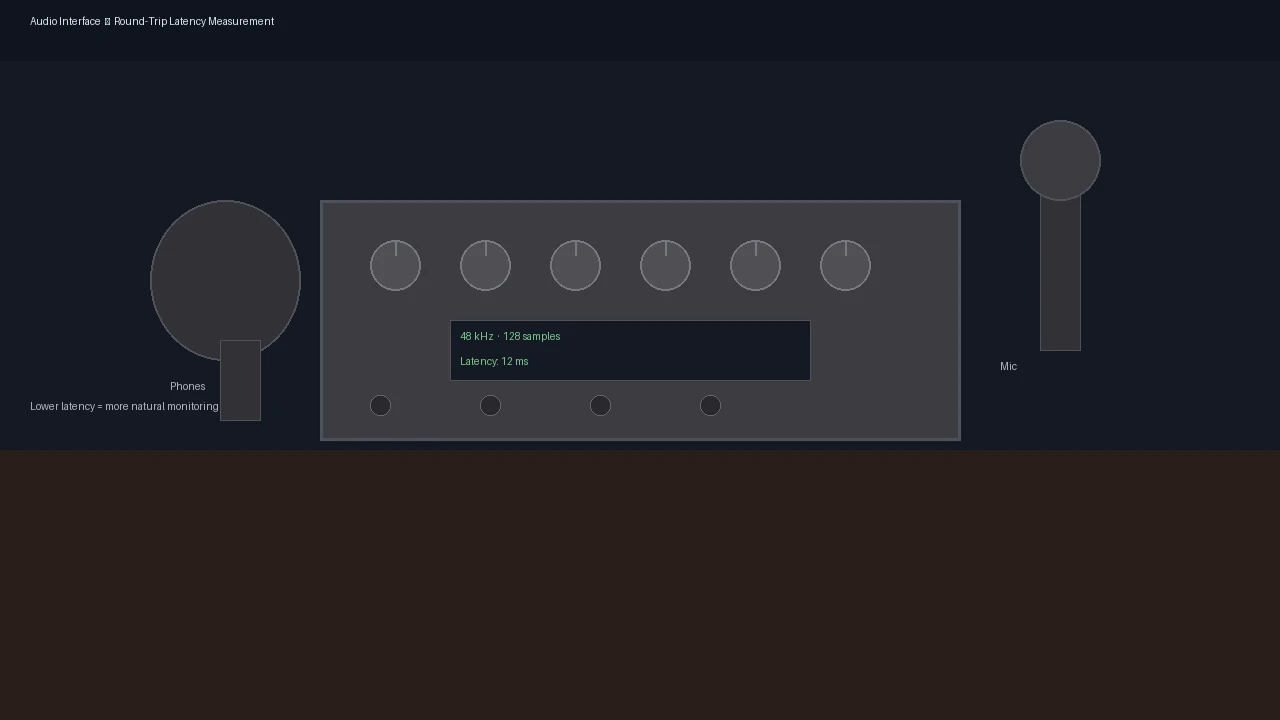
A speaker test plays a tone, a sweep, or a music sample through your output path and confirms that sound emerges. It is a functionality check with a pass-or-fail result: the cable is connected, the driver is loaded, the volume isn’t muted, the digital-to-analog converter is alive. If you can hear the tone, the output path works. That is all the test can tell you. A microphone test does the same for the input direction. It captures what you say, displays a level meter, and confirms that the microphone, the preamplifier, and the analog-to-digital converter are functioning. Again, the result is pass or fail. Latency measurement is a different species of test entirely. Instead of asking whether a signal can traverse a path, it asks how long the traversal takes. The procedure is simple: send a known signal — an impulse, a click, a short burst — through the output, capture it at the input, and compute the time difference between transmission and reception. That difference is the round-trip latency, expressed in milliseconds. The distinction matters because the two measurements are independent. A system can pass every playback test while exhibiting catastrophic latency. Bluetooth speakers are the classic example: they reproduce a tone faithfully, so the speaker test reports success, while the wireless codec adds one hundred to one hundred eighty milliseconds of delay that no playback test ever notices. A tone that arrives one hundred fifty milliseconds late is still, strictly speaking, playing. This is why the common assumption — “my speakers sound fine, so my audio system is fine” — breaks down for anything timing-sensitive. Function and timing are separate axes. Before you trust your setup for recording, calls, or gaming, you need the number that playback tests are structurally unable to produce.
Watch the Buffer Fill
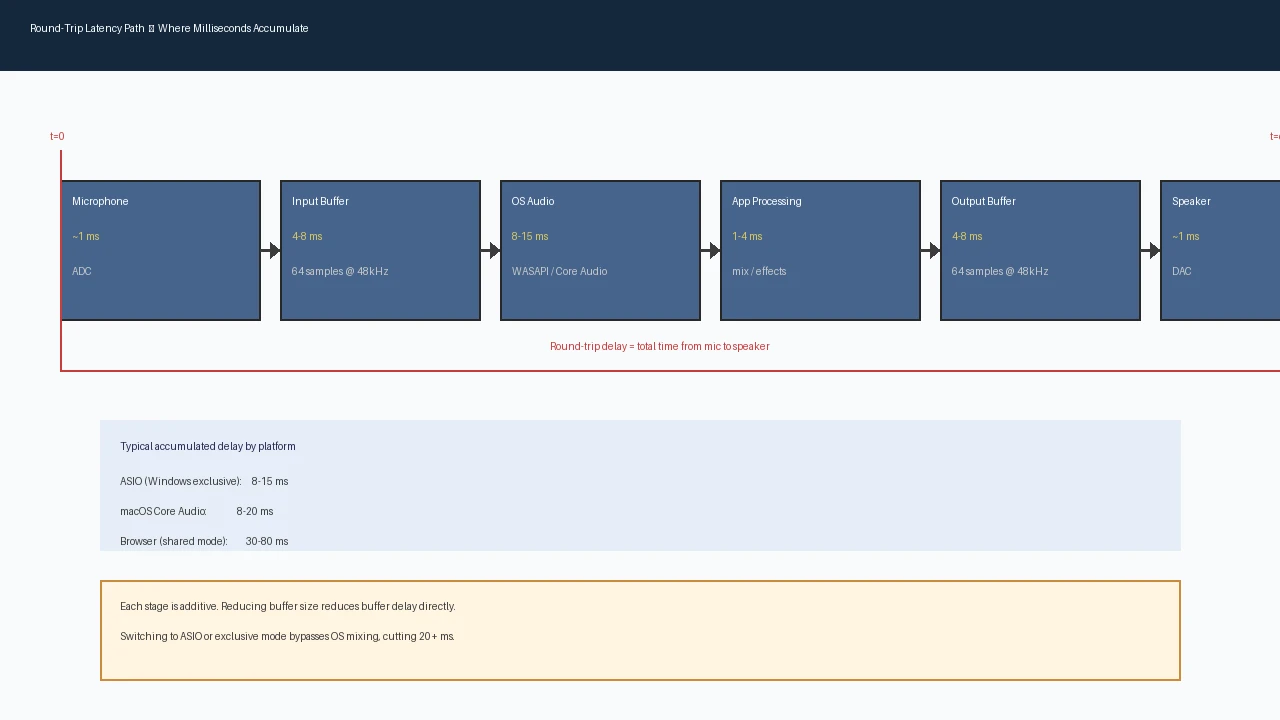
Round-trip latency isn’t a single delay. It is the sum of delays accumulated at every stage between the microphone capsule and the speaker cone. Understanding the path tells you exactly where your milliseconds are hiding:
- Input buffer. The analog-to-digital converter samples continuously, but the operating system delivers audio in blocks. The driver waits for a full buffer before handing data to the application. At 48 kHz, a 128-sample buffer takes 2.7 milliseconds to fill — that’s how long your audio waits before anyone processes it. Most systems keep two or three buffers in flight. Expect roughly five to eight milliseconds before your application sees the first sample.
- Analog-to-digital conversion. The converter needs time to sample, quantize, and clock the signal. On consumer hardware this typically contributes one to three milliseconds; dedicated interfaces do better.
- Operating system scheduling. The audio engine wakes your application on a timer, and the wake-up is subject to normal thread scheduling. In shared modes the operating system also mixes your stream with every other audio source in the system, adding its own processing pass. This stage contributes anywhere from a few milliseconds to twenty or more, depending on platform and load. This is the stage where Linux with PipeWire can pull ahead of Windows — and where a noisy desktop environment can quietly blow up your latency.
- Application processing. The software on the receiving end — a digital audio workstation, an effects chain, a browser audio graph — processes the block before passing it onward. Small, but part of the total.
- Digital-to-analog conversion. The mirror of stage two, adding another one to three milliseconds as the processed signal becomes an analog voltage.
- Output buffer. The processed samples wait in the output buffer until the converter is ready to play them, repeating the buffer-size math from the input side. Add another five to eight milliseconds in typical configurations.
Add the stages together and shared-mode round-trip latency commonly falls between thirty and sixty milliseconds on an ordinary computer — the following measured figures are illustrative examples from specific hardware, not universal specifications. In informal testing on a stock Windows 11 laptop with an onboard Realtek ALC897 codec at a 128-sample buffer, shared-mode measurements were observed to land near the high end of that range. With a Behringer U-Phoria UM2 through ASIO4ALL on the same hardware, the measurement dropped closer to fifteen milliseconds. These are single-machine observations without controlled conditions; they serve as reference points for the typical gap between shared-mode and ASIO paths, not as guaranteed values for your hardware. No driver removes conversion time — but the buffering and scheduling overhead, which dominate the total, shrink dramatically.
One number, two definitions
Audio software rarely quotes a single number. Open the settings of a professional application and you’ll typically see two: input latency, the time from the microphone to the application, and output latency, the time from the application to the speakers. Drivers such as ASIO report both values separately, and marketing material often quotes whichever figure looks better. Round-trip latency is the sum of the two, plus the application’s own processing time. If a system quotes twenty milliseconds one-way, the round trip is roughly forty milliseconds. A user who reads “20 ms latency” and assumes that is the delay they will hear is off by a factor of two — and the mistake is common because one-way figures are the ones printed on specification sheets. The distinction matters because what you perceive is always the round trip. When a musician monitors their own voice or instrument, the sound must leave the microphone, pass through the system, and return to the headphones before they hear it. That is the complete path. A one-way figure describes only half the journey. To keep the discussion consistent, all numbers here refer to round-trip latency. When you compare your measurement against a product specification or a benchmark, always verify that both numbers describe the same kind of journey. Comparing a round-trip measurement against a one-way specification makes your system look twice as slow as it actually is.
The OS Decides Before You Do
The same microphone, the same speakers, and the same cable produce wildly different latency on different operating systems, because each platform routes audio through a different software stack. The stack decides how much buffering and scheduling overhead gets added to the unavoidable conversion time.
Windows: shared mode, exclusive mode, and ASIO
Windows offers three ways to reach the hardware, each with a different latency profile:
- WASAPI shared mode is the default path every application uses unless it asks for something else (Microsoft Learn: WASAPI Shared Mode, 2023). All audio is mixed together and delivered with conservative buffering. Commonly observed round-trip latency ranges from thirty-two to sixty-four milliseconds on typical systems, depending on buffer size and load — these are common experience ranges, not guaranteed values. Web Audio, WebRTC, and media playback each traverse slightly different paths, but all begin at this shared mixer.
- WASAPI exclusive mode or ASIO bypasses the mixer and hands one application direct access to the device, commonly dropping latency to around ten milliseconds on typical hardware (Microsoft Learn: WASAPI Exclusive Mode, 2023). It is available to native applications that request it; browsers cannot.
- ASIO is a driver protocol that bypasses the Windows audio stack entirely and communicates straight with the interface hardware (Steinberg: ASIO Host and Driver Guide v2.3, 2021). With a capable interface, ASIO commonly achieves eight to fifteen milliseconds, though exact numbers depend on the specific interface, driver version, and buffer configuration. Browsers can’t use it.
macOS: Core Audio
Apple’s Core Audio framework is well optimized, and native applications routinely achieve eight to twenty milliseconds round-trip with reasonable buffer settings. The shared path is efficient, so even browser-measured latency on macOS is usually better than on Windows. It still sits above the native minimum, because the browser can’t claim exclusive device access or tune the buffer to its own needs.
Linux: ALSA, PulseAudio, and PipeWire
Linux latency is a moving target. ALSA, the low-level driver interface, is fast but application-specific. PulseAudio historically added noticeable buffering overhead on top. PipeWire, the modern replacement, is designed for low-latency audio and can match or beat the other platforms when configured correctly, but results vary widely with distribution and setup. In most configurations, the browser is confined to the shared path. It can’t request exclusive modes, can’t load ASIO drivers, and can’t raise the priority of its audio thread. Browser audio latency is therefore typically closer to the shared-mode ceiling of your platform — the best the cooperative path can deliver on standard configurations — while native professional software is built to escape that ceiling when the hardware and driver permit.
What 60 Milliseconds Actually Means
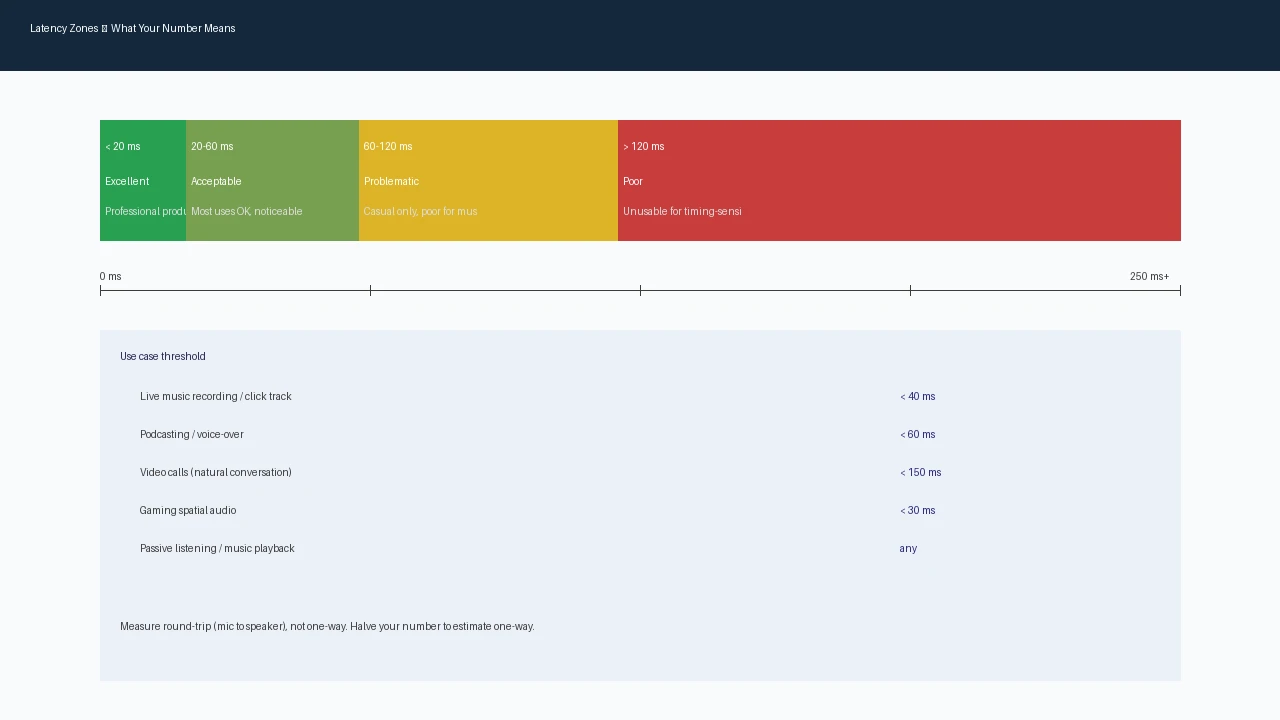
A raw millisecond figure means nothing until you map it against what you intend to do. The boundaries below are general guidance, not professional certification standards; actual suitability depends on your specific task, monitoring setup, and listening environment. Four zones cover the practical range:
- Under 20 ms — excellent. Professional music production is comfortable here. Musicians can track to a click, monitor themselves with effects, and play in time because the return path is effectively instantaneous. Spatial audio in games stays locked to the visuals.
- 20–60 ms — acceptable for most uses. Podcasting, video calls, general gaming, and casual recording all work well. Tight music tracking starts to suffer near the top of this range: players feel the return of their own sound dragging slightly, and precision work becomes noticeably harder above roughly forty milliseconds.
- 60–120 ms — problematic for production, acceptable for casual use. Karaoke, voice chat, and listening are fine. Recording to a backing track becomes genuinely difficult, and in games the audio begins to detach from the action, undermining the positional cues that spatial audio depends on.
- Over 120 ms — poor. Timing-sensitive work is effectively impossible. Calls develop audible echo, performances feel disconnected, and spatial audio sounds wrong even in casual use. This zone is the natural home of Bluetooth audio and misconfigured shared-mode systems.
The zone boundaries are judgment calls, but the shape is reliable: production needs the lowest numbers, conversation tolerates more, and casual listening tolerates the most. Your round-trip measurement places your system in exactly one zone, and that placement tells you which of your intended uses will feel pleasant and which will fight you. Keep the number handy — it’s the reference point for every optimization in the next section.
Three levers: sample rate, buffer, driver
Three controls determine where in the path your latency lands, and they aren’t equal in effect. Sample rate sets the throughput of the pipeline — how many times per second the audio is measured — rather than the delay directly. It does interact with buffer timing, because a buffer is measured in samples: 128 samples take 2.9 milliseconds at 44.1 kHz but only 1.3 milliseconds at 96 kHz, so the same buffer size maps to different durations at different sample rates. The catch is that a higher rate demands more processing per second, which often forces you to raise the buffer back up to stay stable, cancelling the gain. Chasing 96 or 192 kHz usually forces a larger buffer to keep the stream stable, which can cancel the theoretical gain or make things slower. Treat sample rate as a workflow setting, typically 48 kHz, not as the primary latency control. 48 kHz became the de facto standard for video-synced audio because it maps cleanly onto video frame rates of 24, 25, and 30 fps, which is why the professional audio-video pipeline defaults there. Buffer size is the primary latency lever. It determines how much audio accumulates before the system processes it, and it appears twice in the round trip — once on the input side and once on the output side. Halving the buffer halves that portion of the delay, but it also halves the time the system has to deliver each block, raising the risk of buffer underruns: clicks, pops, and dropouts. The practical matrix at 48 kHz looks like this:
- 64 samples — roughly 8–12 ms round trip on capable hardware with ASIO or exclusive mode. Budget interfaces often produce clicks at this size.
- 128 samples — roughly 12–20 ms. A common ASIO sweet spot for production.
- 256 samples — roughly 20–35 ms. Often the smallest stable size in shared mode.
- 512 samples — roughly 35–60 ms. Safe but noticeably sluggish.
- 1024 samples — roughly 60–100 ms. Only for streaming or playback where latency is irrelevant. Driver sets the floor. ASIO and exclusive mode permit buffer sizes of 32 to 128 samples; shared mode floors out higher; Bluetooth codecs add one hundred milliseconds or more before buffers are even considered. No buffer tweak can beat the driver’s minimum, which is why the driver is the first lever, not the last.
The Browser Is Not a DAW
A browser can estimate round-trip latency using the Web Audio API (MDN: Web Audio API, 2024), which schedules an impulse through the output and captures the arriving signal at the microphone input. A typical Web Audio loopback measurement on a laptop in shared mode commonly reports 55–70 ms — several times the ASIO figure — a gap that illustrates the browser’s shared-path tax. The measured time includes the acoustic path through the air, speaker and microphone transducers, room echo cancellation processing, and the entire system audio stack. This is called the acoustic round-trip delay, and it’s the relevant figure for browser-based calls, karaoke, and in-browser games, but it’s not equivalent to the ASIO round-trip latency that professional audio software measures. Keep in mind that this measurement requires a real acoustic path between speaker and microphone; automatic gain control, noise suppression, and echo cancellation can alter the impulse shape, while microphone distance, room reflections, and volume settings all affect the result. What the browser can’t do is reach the hardware’s best case. It must use the operating system’s shared audio path, can’t claim exclusive device access, can’t load ASIO drivers, and can’t control its own audio buffer size or thread priority. The measurement therefore reflects the shared-mode ceiling of your platform rather than the hardware’s true minimum. That ceiling is exactly the right number for browser-based work. Web calls, browser games, web karaoke, and anything else that runs inside a tab all share the browser’s audio path at the OS level, though Web Audio, WebRTC, and media playback differ in details. If the browser-measured number is good, every browser use case will feel good. If it’s bad, native software may still rescue you — but the browser will generally be slower than native software on the same hardware and configuration.
Six Ways to Reduce Latency
Work the problem in order of impact, and stop as soon as your number lands in a zone you can live with:
- Fix the driver mode first. On Windows, install the ASIO driver for your audio interface, or switch to WASAPI exclusive mode. This is the single largest lever and it’s free.
- Reduce the buffer size. Step down from 512 to 256 to 128 to 64 samples, testing each setting, until you hear clicks or pops. Then step back up one level to the largest buffer that stays clean.
- Check the sample rate. Use 48 kHz for music and video work. Chasing 96 kHz or 192 kHz usually forces a larger buffer and ends up slower.
- Close competing applications. Streaming, capture, and busy browser tabs steal CPU time from the audio thread and cause underruns at small buffer sizes.
- Consider an audio interface. Dedicated hardware brings better converters, proper ASIO drivers, and buffer sizes that onboard audio can’t reach.
- Prefer wired connections. For anything timing-sensitive, wired headphones beat Bluetooth by one hundred milliseconds or more, regardless of every other setting. Each step compounds. Moving from shared mode at 512 samples to ASIO at 128 samples commonly shifts a system from fifty milliseconds to under twenty — the difference between unusable and professional.
Bottom Line
A playback test confirms that your speakers work. A loopback test confirms that they work in time — and those are different questions with different answers. Run the speaker test to validate the output path and the microphone test to validate the input path. Please note that this site doesn’t currently offer a dedicated loopback latency measurement tool; the Web Audio API approach described above requires a separate implementation or browser console setup. Use it to learn the acoustic round-trip delay that determines whether recording, conversation, and spatial audio feel natural on your machine. Measure once and keep the result. Under twenty milliseconds means professional-grade timing. Twenty to sixty covers most everyday work. Above one hundred twenty, every timing-sensitive task will fight you, and the fix usually starts with the driver rather than the hardware. If you’ve never measured the number, you’re guessing about every audio task that depends on timing.