USB Bus Contention — Why Your Devices Slow Down Together
The common belief that each USB port is independent is wrong. Devices that share the same upstream link, hub, speed domain, or controller scheduling resources compete for bandwidth, while devices on separate paths do not. When a bandwidth-heavy device like a camera or external drive runs on the same controller as other devices, all of them can slow down. This guide explains the actual USB topology, identifies the symptoms of contention, and gives you a reconnection strategy that most users never learn. The examples and figures throughout are common reference values; actual speeds depend on controller, cable, device, and operating system.
Most people assume every USB port on their computer is an independent lane with its own private connection to the system. Plug a drive into one port and a camera into another, and the natural expectation is that neither can possibly affect the other. Ask a dozen users why their devices slow down together, and the majority will blame the devices, the cables, or the operating system. That mental model is wrong, and it’s the reason so many USB troubleshooting sessions end in frustration.
USB ports aren’t independent. They are grouped under controllers, and every device attached to a single controller shares one bus with a fixed total bandwidth. When the devices on that bus need more than it can supply, they compete for it, and everyone on the bus slows down — including devices that barely use any bandwidth themselves. That competition is bus contention.
Contention explains a long list of mysterious symptoms: a webcam that drops frames the moment an external drive starts copying, audio that crackles when a printer begins a job, a MIDI controller that disconnects mid-performance. In many of these cases the devices are not faulty — they are starved, and the starvation is caused by the connection layout rather than the hardware. Move the same devices to different ports and the problems often vanish, which is why identical peripherals work flawlessly on a friend’s machine. Note that USB anomalies can also stem from power delivery, cable quality, driver bugs, controller scheduling, isochronous transfer limits, USB 3.x RF interference, or firmware issues — bandwidth contention is a leading candidate to check first, not a universal explanation.
The good news is that contention is diagnosable and often fixable by rearranging existing ports. A frequently cited example: a Logitech C920 webcam dropping frames on a Dell XPS 15 was resolved by moving a Samsung T7 drive to a different controller — the fix cost zero dollars. (This is an illustrative case reported by users, not a controlled lab measurement.) This page explains how USB topology actually works, why certain connection patterns can starve your devices, and how to rearrange your ports to reduce or eliminate the problem.
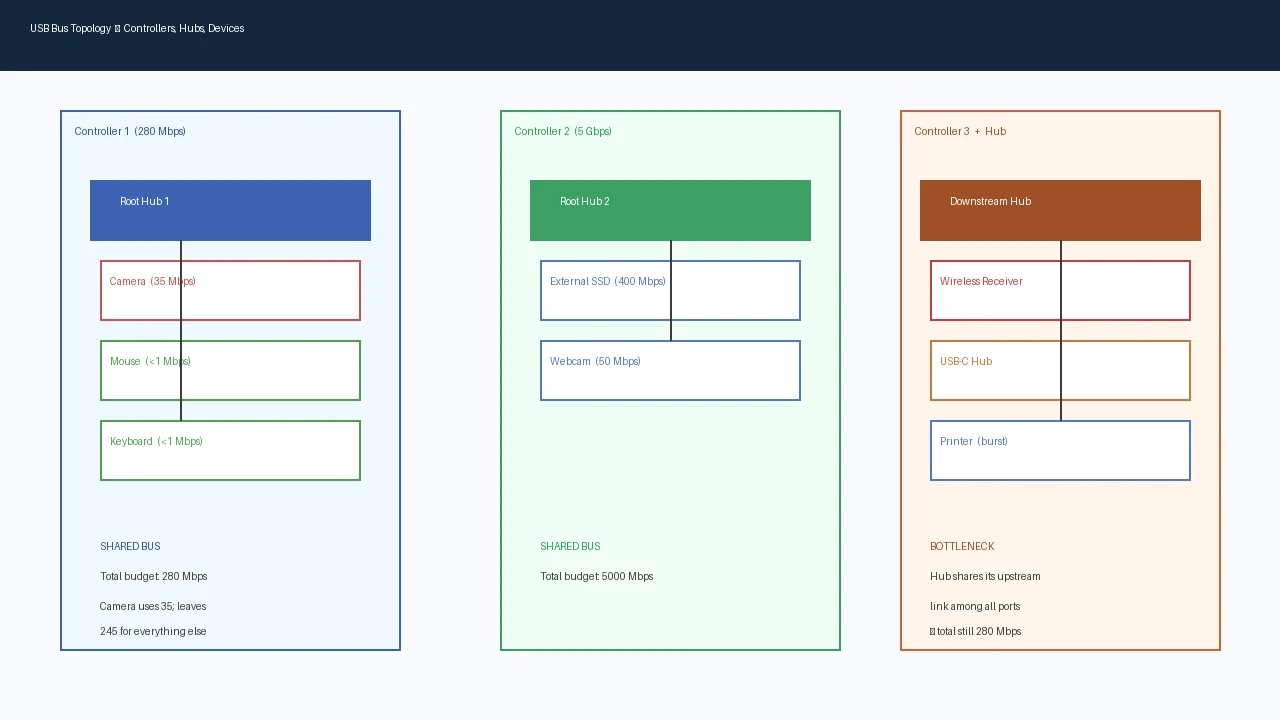
How USB topology actually works
USB traffic follows a strict hierarchy. At the top sits the host controller, a chip on the motherboard that runs the USB protocol on the system’s behalf. Each controller owns one or more root hubs, which terminate in the physical ports you see on the back panel. Cables and external downstream hubs extend the bus further, and devices attach at the ends. Whether devices actually compete depends on whether they share the same upstream link, hub, speed domain, and controller scheduling resources. Devices on separate speed domains (USB 2.0 versus USB 3.x) or on separate root hub branches under the same controller may not compete at all — seeing the same controller name alone does not prove they draw from one bandwidth pool. As a first approximation, however, treating everything under one controller as shared is the safe assumption when diagnosing contention.
In modern systems the controllers live inside the chipset rather than as separate chips, which is why a motherboard’s port layout can look arbitrary. The manufacturer decides which physical ports connect to which controller, and that grouping isn’t printed anywhere on the case. Four rear ports may hang off one controller while the front-panel header routes to another, with no visual clue at all. The only reliable way to learn the grouping is to inspect it in software.
External hubs extend the tree one level deeper, but they don’t create a new bus — they add downstream branches to the same controller, and every hop adds a small amount of latency. The practical rule is that hubs multiply your connection options while sharing a single bandwidth budget.
Windows Device Manager groups USB connections under Universal Serial Bus controllers. Each USB Root Hub entry represents a branch of the USB tree, but note that a single host controller may manage multiple root hubs and Device Manager doesn’t always reveal the full physical controller grouping. For a more accurate topology view, tools such as USB Device Tree Viewer or USBView show the actual controller-to-hub-to-device hierarchy. macOS shows the same information in System Report under USB, and Linux displays the tree with lsusb -t.
Consider a concrete example from a mainstream consumer motherboard. It typically has 2-3 USB controllers: the chipset’s native USB 2.0 controller, a third-party USB 3.x controller (often ASMedia or similar), and possibly a Thunderbolt controller that also carries USB. Rear panel ports are grouped by controller, not by generation. The exact mapping varies by manufacturer and must be verified against the motherboard manual or USB tree tools.
Now imagine the wiring: a webcam on a rear USB 2.0 port, an external drive on another rear USB 2.0 port, and a mouse receiver on a third. All three sit on the same bus, competing for roughly 280 Mbps of capacity. Move the drive to a USB 3.0 port on the second controller, and the camera suddenly has the USB 2.0 bus to itself. The topology, not the hardware, was the bottleneck.
That is the point of learning the topology: it turns random port-swapping into a deliberate plan.
Bandwidth That Actually Matters
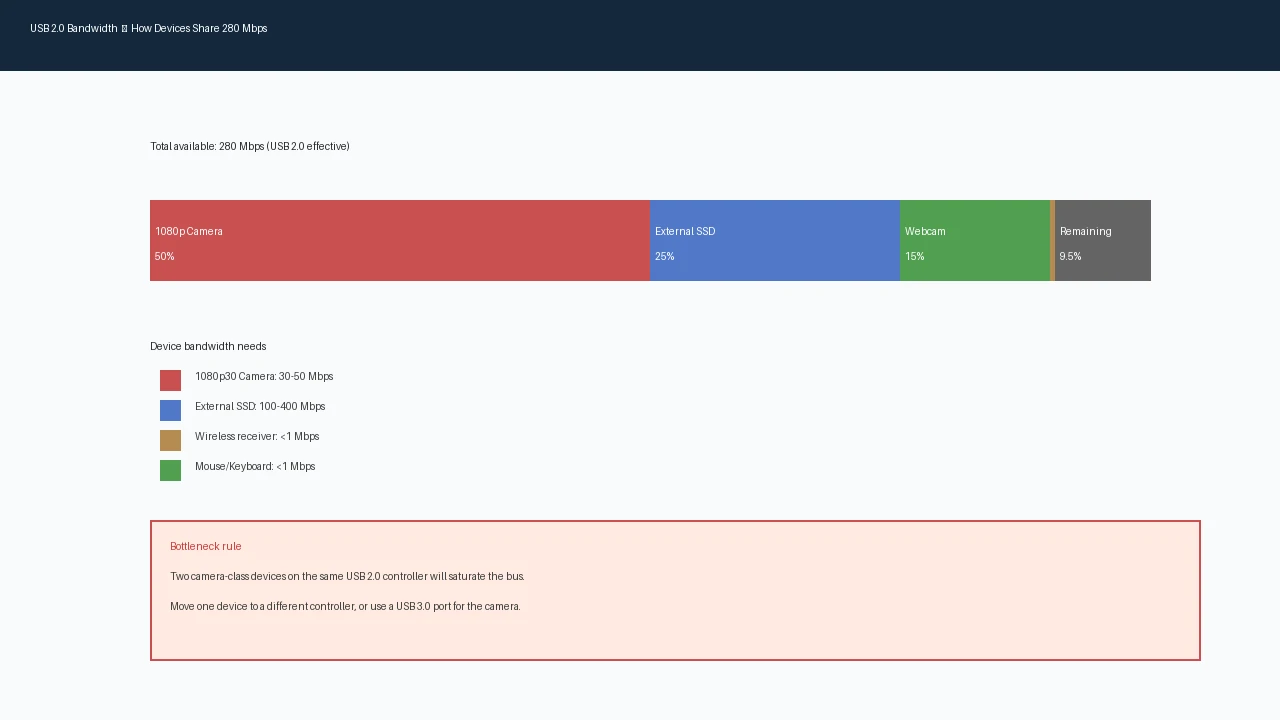
Bandwidth is the language of contention, and two figures matter more than any others. A USB 2.0 bus is rated at 480 Mbps in theory (USB-IF: USB 2.0 Specification, Section 5.7.6). After protocol overhead, the practical ceiling is typically in the range of 250-280 Mbps of usable throughput (about 30-35 MB/s) (USB-IF: USB 2.0 Specification; industry measurements show ~280 Mbps sustained on compliant controllers), depending on the controller and system load. A USB 3.0 bus is rated at 5 Gbps, roughly ten times higher, with a practical ceiling typically in the range of 300-400 MB/s depending on the controller and cable quality. Note the units: Mbps is megabits per second, MB/s is megabytes per second; 1 MB/s equals 8 Mbps. Now compare what your devices actually consume. A Logitech C920 on a USB 2.0 bus streams at roughly 35 Mbps sustained for 1080p30 MJPEG, leaving about 245 Mbps for other devices — and that is before protocol overhead on the isochronous transfers:
- A 1080p webcam at 30 fps in a compressed format such as MJPEG or H.264 typically streams at 20-50 Mbps, depending on the camera’s encoding quality — a range consistent with Logitech C920 streaming at ~35 Mbps for 1080p30 MJPEG and the OBSBOT Tiny 4K requiring ~40-50 Mbps for 1080p30 H.264 (Logitech Support: C920 Specifications; OBSBOT: Tiny 4K Streaming Guide). An uncompressed YUY2 stream at the same resolution is significantly higher — often several hundred Mbps or more — so treat the compressed figure as an approximate range for compressed formats only.
- An external SSD during a large file copy commonly runs at 100-400 MB/s (megabytes per second) depending on the drive and interface; some high-end drives exceed this. Older mechanical drives are typically slower.
- A printer bursts data in short, heavy pulses while a job is printing.
- A mouse, keyboard, or wireless receiver uses a negligible few kilobits per second. The arithmetic is the reveal. Put a camera and an external drive on the same USB 2.0 bus, and the drive alone can consume the entire practical bandwidth, leaving the camera almost nothing. Add a third active device, and the controller can’t satisfy all of them, so it services requests in turn. Every device on the bus experiences the resulting delays: the drive copies slower, the camera drops frames, and even the mouse can feel unresponsive because its tiny polling packets queue behind larger transfers. Understanding where the budget goes matters more than the raw numbers. Many cameras and audio interfaces negotiate isochronous transfers: they reserve a recurring slice of the bus in advance, protecting their stream at the cost of leaving less for everyone else. Some devices use bulk transfers instead, which compete differently — but the practical effect is the same when the bus gets crowded. When reserved slices plus burst transfers exceed that ceiling, the controller thins out best-effort transfers and, in the worst case, fails the reservations — which is exactly when a camera starts dropping frames. The numbers also explain why USB 3.0 feels like a fix for everything. Its practical ceiling is an order of magnitude larger — rated at 5 Gbps theoretical (USB-IF: USB 3.0 Specification, Section 5.6.6) with a typical real-world ceiling around 300-400 MB/s (Samsung T7 Portable SSD, benchmarked at ~350 MB/s sustained reads on USB 3.2 Gen 1) — so two or three heavy devices can coexist on one 5 Gbps bus without noticeable contention. But the same logic scales upward: several drives writing in parallel can saturate even a USB 3.0 bus. Contention follows demand, not the label on the port.
Four Myths About USB
Four beliefs about USB bandwidth cause most of the misconfiguration in the wild. Each one sounds plausible, each gets repeated on forums, and each points at the same wrong conclusion: blame the device when the layout is at fault.
Myth one: “USB 3.0 and 2.0 are independent.” They are electrically separate, yes — but only on the motherboard. The complication is hubs. Plug a USB 2.0 device into a USB 3.0 hub. A compliant hub has separate USB 2.0 and SuperSpeed paths, so your 2.0 device runs at High-Speed 480 Mbps on the USB 2.0 path as expected (USB-IF: USB 2.0 Specification). But some older hubs negotiate the device down to Full-Speed 12 Mbps (USB-IF: USB 2.0 Specification, Section 5.4.4) — no warning, no error, a tenfold or more drop in throughput with no error or warning. Always check the negotiated speed in Device Manager.
Myth two: “More ports, more bandwidth.” Adding a hub or plugging devices into the remaining ports doesn’t create throughput. A rear panel with six ports on one controller offers the same total bandwidth as a single port on that controller. More ports is convenience, never bandwidth. An eight-port USB 2.0 hub still delivers roughly 280 Mbps to all of its ports together — the hub arbitrates access to a single upstream link, not a per-port budget.
Myth three: “Wireless receivers need USB 3.0 for speed.” A mouse or keyboard receiver transmits a few kilobits per second — a USB 2.0 port is a thousand times more than enough. The real enemy is RF interference. USB 3.0 signaling generates radio noise across roughly 2 to 2.8 GHz (Logitech Support: USB 3.0 Interference Guide, 2013; Intel: USB 3.x Interference Whitepaper, 2015), which overlaps the 2.4 GHz band your receiver uses. Plug it next to a USB 3.0 port and the antenna sits inside a zone of radio noise. Use a direct USB 2.0 port with the extension cable from the box — this alone often resolves recurring mouse stuttering.
Myth four: “Bandwidth contention is rare.” It is one of the more commonly overlooked causes of USB device problems, precisely because it’s invisible. Devices rarely announce that they are starved. They drop frames, crackle, stutter, or disconnect intermittently — and each symptom gets blamed on the device itself. The result is a graveyard of RMA’d webcams, audio interfaces, and drives that may work perfectly on a different port layout. Treat contention as a leading candidate to check first for intermittent USB failures — but not the only possible cause.
Laptop or Desktop? Different Problems.
Laptops and desktops fail differently, and the topology explains why. A laptop has one to three controllers for everything: all of its USB ports, the built-in webcam, the fingerprint reader, and often internal Bluetooth. Every peripheral you plug in competes not only with the other peripherals but with built-in hardware on the same buses. Laptops also increasingly merge Thunderbolt and USB into a single controller, so a dock carrying a display, drives, and peripherals funnels everything through one bus. Aggressive BIOS power management can additionally idle or disable individual controllers to save battery, producing devices that vanish and reappear without warning. Desktops usually have more controllers — two to four — which is an advantage. The layout, however, often groups many rear ports under a single controller, and one hub chain can funnel a dozen devices into a single bus. The typical desktop failure isn’t a scarcity of controllers but poor port assignment: the heavy devices end up on the same bus as everything else. The practical difference shows up in the fix. On a laptop, solve contention by prioritizing: decide which devices deserve the scarce bandwidth, and move the rest to the dock’s USB 2.0 ports or a powered hub. On a desktop, solve it by spreading: map which rear and front ports belong to which controller, then distribute heavy devices across all of them.
Symptom diagnosis table
Each symptom below points to its most likely cause, turning a frustrating guess into a checkable hypothesis.
- Camera dropping frames — bandwidth saturation on a shared controller. A streaming camera is the classic canary: it consumes bandwidth continuously, so it’s the first device to visibly fail when anything else on the bus demands its share. This is also why a webcam real-stream test can show a clean local preview while the encoded stream degrades — the bus may be starving the camera before the encoder even runs. Unplug the other devices and the camera recovers immediately.
- Audio crackling — bandwidth or power problems on a shared hub. Audio interfaces are latency-sensitive. When the bus is saturated, their scheduled transfers arrive late, and the delays surface as clicks and crackles. The symptom typically appears only while a second device is actively transferring.
- MIDI controller disconnecting — latency sensitivity on a saturated bus. MIDI depends on low-latency delivery. When the controller’s transfer slots are starved, the host treats the device as unresponsive and drops the connection. Replugging restores it until the next contention event.
- Wireless receiver stuttering — RF interference from USB 3.0, or bandwidth contention. If the receiver sits next to USB 3.0 ports, suspect RF first. If it works when idle but stutters under load, suspect the bus.
- External drive copying slowly — bandwidth sharing with another active device. Drive throughput collapses when a camera or a second drive is active on the same bus. The same drive on an idle bus returns to full speed immediately.
- Intermittent disconnects — power or bandwidth threshold exceeded. If disconnects track other devices being busy, the cause is bandwidth. If they track adding more devices, the cause is power. The fastest diagnostic is to change the load. A device that behaves perfectly when everything else is unplugged, and misbehaves the moment the bus gets busy, is a contention victim. That single observation separates hardware faults from layout faults in minutes.
Map It. Separate It. Test It.
Once you have mapped your controllers and confirmed the symptom, the fix is a deliberate reconnection. A common example: an audio interface cracks whenever the printer runs because both share the same USB 2.0 bus. Working through this sequence in order usually solves it in ten minutes:
- Identify your controllers. Open Device Manager and expand Universal Serial Bus controllers. Note that each USB Root Hub is a branch of the USB tree, not necessarily a separate controller; a single host controller may manage multiple root hubs. Use a dedicated topology tool such as USB Device Tree Viewer or USBView for the most accurate controller-to-device mapping.
- Group bandwidth-heavy devices on separate controllers. Put the camera on one controller and the external drive on another. On a desktop this usually means the rear controller for the camera and the front-panel header — often a different controller — for the drive.
- Use direct motherboard ports for critical devices. For a gaming mouse, an audio interface, or a MIDI controller, skip the hub and the front panel. Plug straight into the rear I/O with the shortest cable that reaches.
- Use a powered hub for power-hungry devices, not bandwidth. A powered hub stabilizes devices that drop out from insufficient power, but it adds no throughput. Heavy devices belong on direct ports; power-hungry accessories belong on the hub.
- Move wireless receivers away from USB 3.0. Use a rear USB 2.0 port, or the receiver’s extension cable, so the antenna sits clear of USB 3.0 noise.
- Retest under load after every change. Start a camera stream and a drive copy at the same time. The layout is correct when neither degrades.
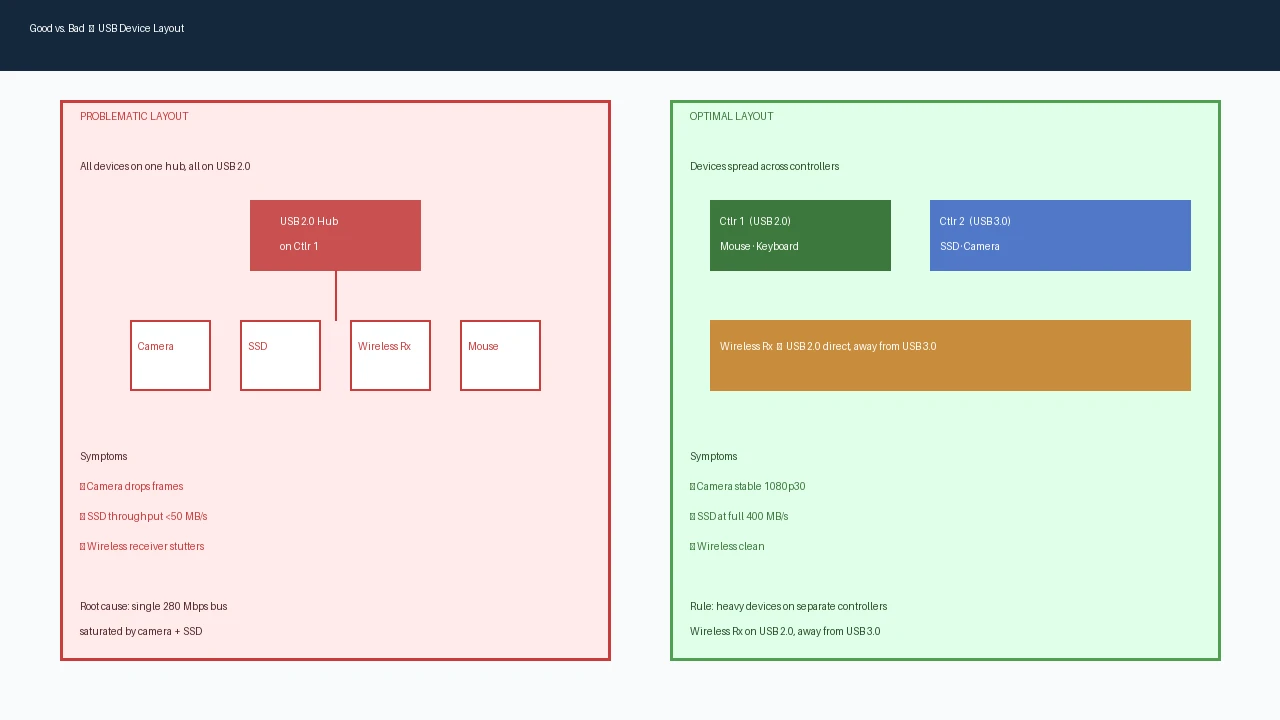 Reconnection costs nothing and can resolve many cases of contention. If the symptom persists after the layout is correct, only then does the device itself deserve scrutiny, along with power delivery, cable quality, and driver settings.
The Browser Is Not a Topology Tool
Among the browser’s USB-related APIs, WebHID is the one this site uses; it can identify connected HID devices such as keyboards, mice, and game controllers after obtaining explicit user permission. (Other browser APIs like WebUSB handle non-HID peripherals, but storage devices and most cameras still do not expose themselves to any browser API.) It can reveal basic device information such as vendor and product IDs, but it does not show the full USB controller topology, per-device bandwidth usage, or the controller-to-hub-to-device hierarchy. WebHID requires per-device permission and many peripherals — including storage devices and most cameras — do not expose themselves to the browser at all. The USB device info tool on this site uses WebHID to show which HID device is connected and its vendor and product IDs; it’s a device identification aid, not a topology analyzer. For complete topology mapping, use USB Device Tree Viewer (Windows), USBView, or system_profiler SPUSBDataType (macOS). These system tools show the actual controller-to-root-hub-to-hub-to-device tree and can help identify which devices share a bus. Pair the system tool view with Device Manager for controller mapping and with HWiNFO for per-device throughput. The system tools answer how it’s connected and how hard it’s working — confirming a contention diagnosis before you unplug anything.
Bottom line
USB is shared, not dedicated. Every port on your computer is a door into a bus with a fixed amount of bandwidth, and every device plugged into that bus divides the capacity among themselves. When devices slow down together, they are often not faulty — they are likely contending. The fix is rarely new hardware — and sometimes, counterintuitively, the best move is to unplug, not add. A frequently reported example: a Logitech C920 webcam that kept dropping frames was fixed by unplugging a flash drive that shared its controller. Counterintuitive, but plausible: the fastest USB setup often has fewer devices on each bus, not more. Map your topology, separate bandwidth-heavy devices across different controllers, keep critical peripherals on direct motherboard ports, and give wireless receivers a clean USB 2.0 connection. Then test the actual connection path: run a camera stream and a drive copy at the same time and watch what breaks. The layout that survives that test is the layout worth keeping.